





































































Enter Password to Unlock 30 30 Attempts Remaining: Full Guide 2025
-
Onstipes / 2 months
- December 5, 2025
- 0
- 8 min read

What “Enter Password to Unlock 30 30 Attempts Remaining” Really Means
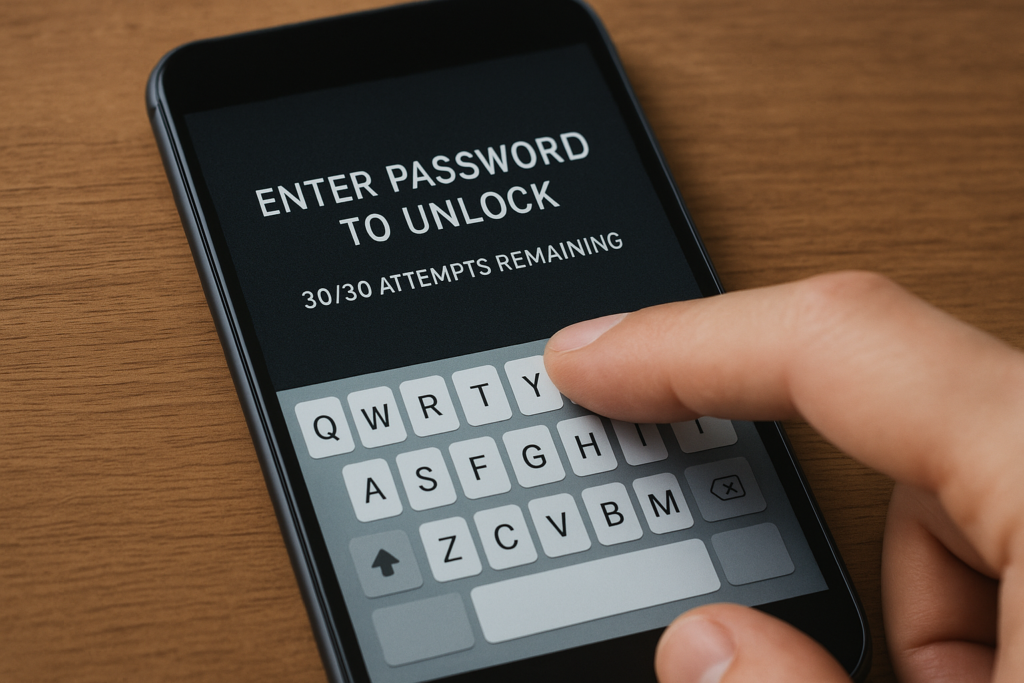
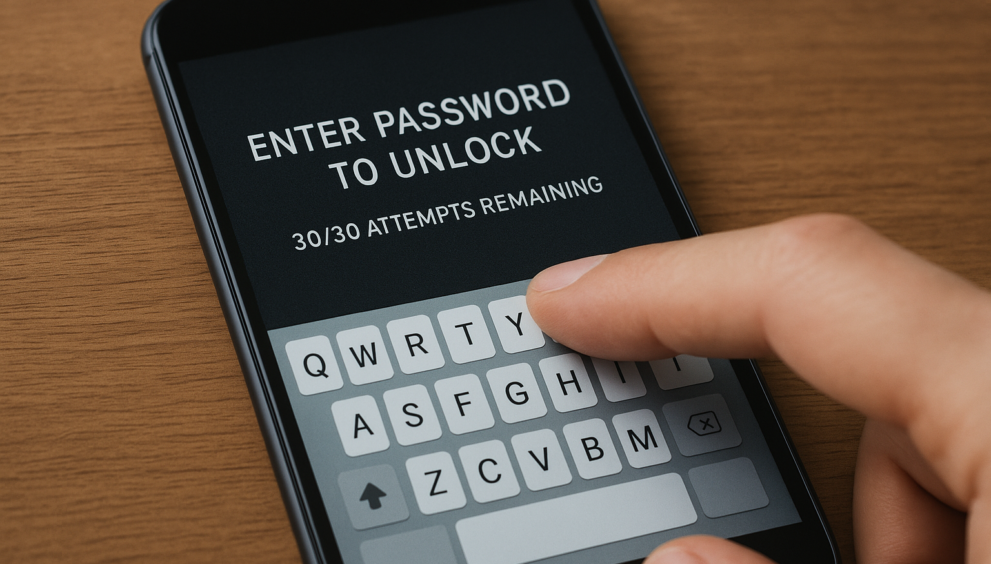
Seeing the message “Enter Password to Unlock 30 30 Attempts Remaining” can feel alarming, especially if you’re certain you typed the correct PIN or password. This prompt appears when an Android device requires a startup or decryption password, often linked to secure startup, phone encryption, or a restart after a system update. Instead of a regular lock screen, your phone is asking for the password that decrypts the device’s data.
This screen is most common on LG phones, Samsung models, and older Android devices that rely on encryption-based protection. When the phone shows 30 30 attempts remaining, it simply means you still have all attempts available before the device might lock you out, limit input, or begin a security process. It’s a warning, not an error—but it signals that the phone wants the exact password used before encryption was activated.
Users often search phrases like “android enter password to unlock 30 30 attempts,” “phone says 30 attempts remaining,” or “android asking password after reboot” because this issue appears suddenly, even when no password changes were made. Understanding what this message means is the first step to unlocking your device safely without risking data loss.
Common Situations That Trigger the 30 30 Attempts Warning
One common situation that triggers the “30 30 attempts remaining” warning is a phone restart or system update. After rebooting, the device may require the secure startup password to decrypt data. Even if your PIN or password hasn’t changed, the phone might ask for it due to encryption or security settings.
Another situation occurs when multiple incorrect password attempts are detected. Android devices, including LG phones and Samsung models, monitor failed entries and display the full attempts remaining. Even entering the correct password after a few failed tries can sometimes trigger this screen, leaving users worried about data loss or lockout.
Occasionally, this warning appears on second-hand devices or phones that previously had encryption enabled. If the device was factory reset without removing secure startup, or if account syncing caused a password mismatch, the “Enter Password to Unlock 30 30 Attempts Remaining” message can unexpectedly appear, signaling that proper decryption is required before the device can be accessed.
Why Your Phone Asks for a Password You Never Set
Sometimes your phone asks for a password even if you never set one. This usually happens on LG, Samsung, or other Android devices with secure startup or encryption enabled. When encryption is active, the phone requires a decryption password at boot, which can appear unexpectedly after updates or restarts.
Another reason is purchasing a second-hand device. If the previous owner enabled secure startup or set a backup PIN, the phone might still require that password. Users may encounter the “Enter Password to Unlock 30 30 Attempts Remaining” message even when no visible password was ever configured on the device.
Software glitches or account synchronization errors can also trigger this warning. Even if the password is correct, Android may temporarily fail to recognize it. Understanding why your device asks for an unknown password helps you approach unlocking safely and prevents unnecessary repeated attempts that could reduce the remaining tries.
Is Your Phone Encrypted? Understanding Secure Startup & Decryption
Many Android devices, especially LG phones and Samsung models, use secure startup to protect your data. This feature encrypts all information on the device and requires a password or PIN during boot. Without entering the correct decryption password, the phone remains locked to prevent unauthorized access.
Encryption ensures that even if someone removes the storage or SIM card, your data stays secure. When your phone displays “Enter Password to Unlock 30 30 Attempts Remaining,” it’s asking for the key to decrypt this protected data. This is different from a standard lock screen, which only prevents casual access but doesn’t encrypt data.
Knowing whether your phone is encrypted helps you choose the right solution. Some users can unlock via Google account recovery or backup PIN, while others might need OEM tools or safe methods to decrypt without losing data. Understanding decryption is crucial to prevent mistakes that could trigger data loss or lockouts.
Quick Fixes Before Trying Major Unlock Methods
Before attempting more advanced solutions, there are simple steps you can try to fix the “Enter Password to Unlock 30 30 Attempts Remaining” message. First, restart your phone properly by holding the power button and selecting reboot. Sometimes, a simple reboot resolves minor glitches related to encryption or secure startup.
Next, check your keyboard layout and input method. An incorrect language setting or keyboard type can cause your password to be entered incorrectly, even if you’re typing it correctly. This issue commonly occurs after system updates or restarts.
Finally, remove external accessories such as SD cards, SIM cards, or cases that might interfere with touch input. Ensuring the screen is clean and responsive also helps. These quick fixes often solve minor lock screen issues and can save your remaining attempts before you need more technical solutions.
Step-by-Step Methods to Fix “30 30 Attempts Remaining”
If quick fixes don’t work, you can follow step-by-step methods to safely unlock your device. Start by entering alternate passwords or backup PINs if you set them previously. These options often work on LG phones and other Android devices without risking data loss.
Using your Google Account is another safe approach. Some devices allow account verification to bypass the lock screen after multiple failed attempts. Make sure your phone is connected to Wi-Fi or mobile data for this method to work effectively.
For brand-specific solutions, LG phones may require LG Bridge software or official recovery options, while Samsung devices can use Find My Mobile to unlock the screen. Following these structured steps ensures that you can regain access without exceeding password attempts or triggering a full factory reset.
Unlock Methods Without Losing Data (Best Possible Options)
If previous methods don’t work, there are ways to unlock your Android phone without losing data. One option is Smart Lock, which can automatically unlock your device in trusted locations or with recognized devices. This is particularly useful if you had previously set it up.
Another option is using ADB commands if USB debugging is enabled. Advanced users can unlock certain Android devices by connecting them to a computer and executing safe commands without wiping data. Ensure you follow official instructions carefully to avoid errors.
For Samsung devices, Find My Mobile can remotely unlock your phone, while some OEMs provide official cloud-based unlocking portals. These methods let you bypass the “Enter Password to Unlock 30 30 Attempts Remaining” warning safely, keeping all files, apps, and settings intact.
Full Unlock Solutions (With Data Loss) If Nothing Works
When all safe methods fail, a full unlock may be necessary, but this usually results in data loss. The most common approach is performing a factory reset through recovery mode. This wipes all data but restores access to the device.
For LG phones, using LG Bridge or the built-in recovery option can reset the phone. Samsung users can utilize Find My Mobile or enter recovery mode to reset the device. Always ensure your device is sufficiently charged before performing these steps to avoid interruptions.
Another option is FRP (Factory Reset Protection) bypass, typically required after multiple failed attempts. While this unlocks the phone, it erases personal data. These methods should be a last resort when safe, data-preserving techniques are unsuccessful.
When to Contact Official Support or a Professional Technician
If none of the unlocking methods work and you still see the “Enter Password to Unlock 30 30 Attempts Remaining” warning, it may be time to contact official support. Manufacturers like Samsung, LG, Xiaomi, and Google offer verified assistance for lock screen issues and can guide you through secure recovery options.
Professional technicians are another option, especially if your device has hardware-related problems. Issues like a faulty touchscreen, damaged power button, or corrupted software can prevent your password from being recognized, even when entered correctly. Experts can diagnose and repair these issues without risking further damage.
Always choose authorized service centers or trusted technicians. Avoid unverified shops that offer risky bypass tools, as they may compromise your privacy or void your warranty. Professional help ensures your device is unlocked safely and your data remains protected.
How to Avoid the “30 30 Attempts Remaining” Problem in the Future
To prevent facing the “Enter Password to Unlock 30 30 Attempts Remaining” issue again, start by setting a password you can easily remember but others cannot guess. Avoid overly complex combinations that you may forget after updates or long periods of inactivity.
Enable backup options such as Smart Lock, fingerprint, face unlock, or a secondary PIN. These alternatives help you access your device even if you temporarily forget your primary password. Keeping these features active reduces the risk of locking yourself out.
Just as you follow secure startup practices on Android to prevent lockouts, it’s important to follow proper account recovery and login procedures for other devices, like using this Apple Sign-in guide to manage your Apple accounts securely.
Finally, update your device regularly and avoid installing untrusted apps that may interfere with system functions. Regular backups through Google Drive or OEM cloud services also ensure your data stays safe, even if unlocking issues occur again in the future.